

Craft reviews every connected call and decides whether it was a real sales opportunity. Qualified calls count toward your booking rate, so it’s worth knowing how to check the decision, fix a call that doesn’t belong, and tune the rules for your business.
This page covers three things:
- See why a call was marked qualified.
- Excuse a call that shouldn’t count against your booking rate.
- Set the rules so similar calls are handled correctly from now on.
The screenshots on this page use sample data.
See why a call was marked qualified
Open the call
Go to Contact Center, open Calls, and click the call you want to check.
Hover over the Qualified checkmark
At the top of the call, find the Qualified field. A green checkmark means qualified. A red X means not qualified.
Hover over the checkmark or X (1) and Craft shows the reason in plain language (2).
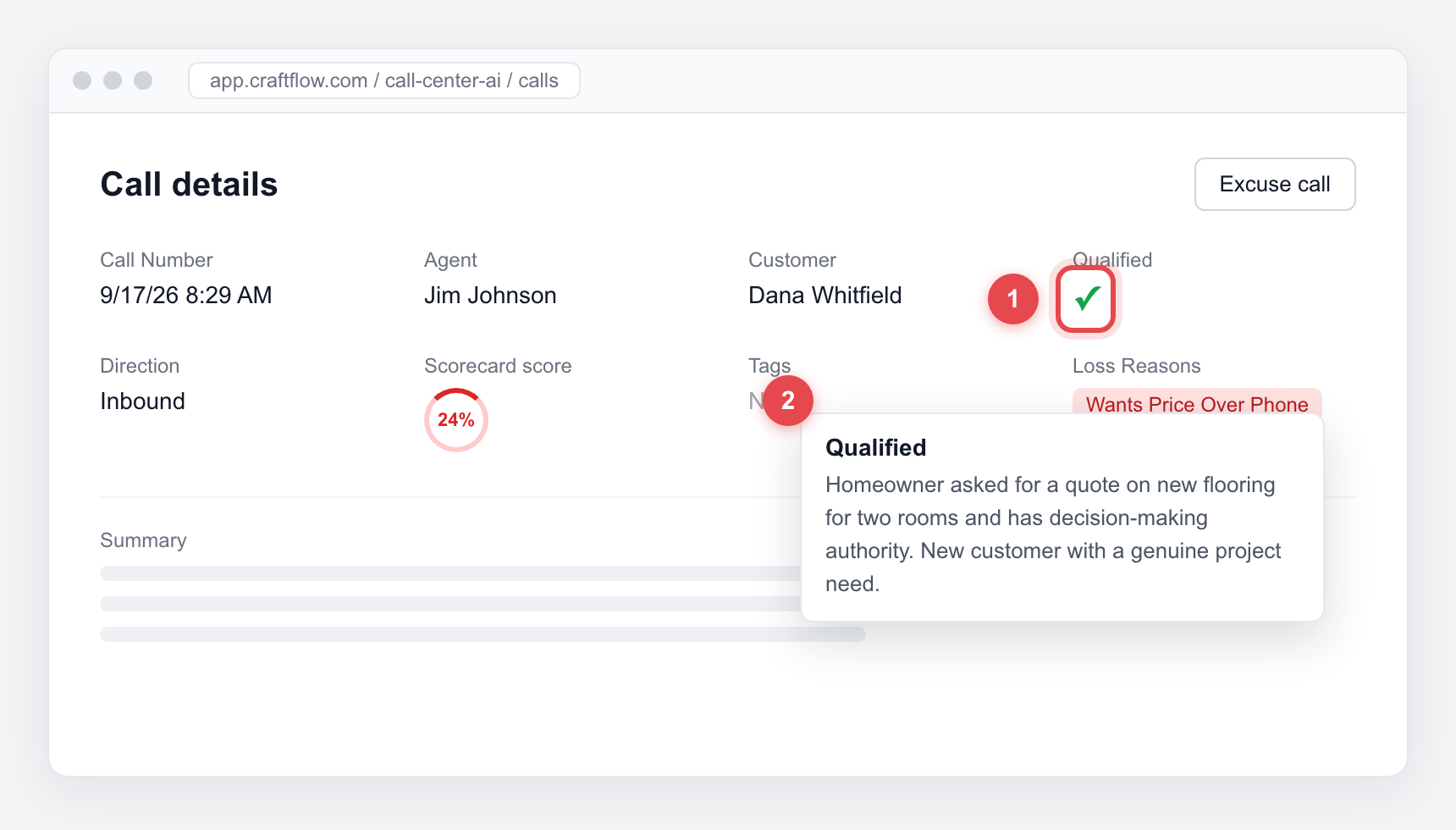
If the reason shows Craft misread the call, or the call is one your business would never count (for example, a caller outside your service area), excuse it using the steps below.
Excuse a call
Excusing a call removes it from your booking rate. Use it when a qualified call shouldn’t count as a missed opportunity.
Click Excuse call
Open the call and click Excuse call at the top right.
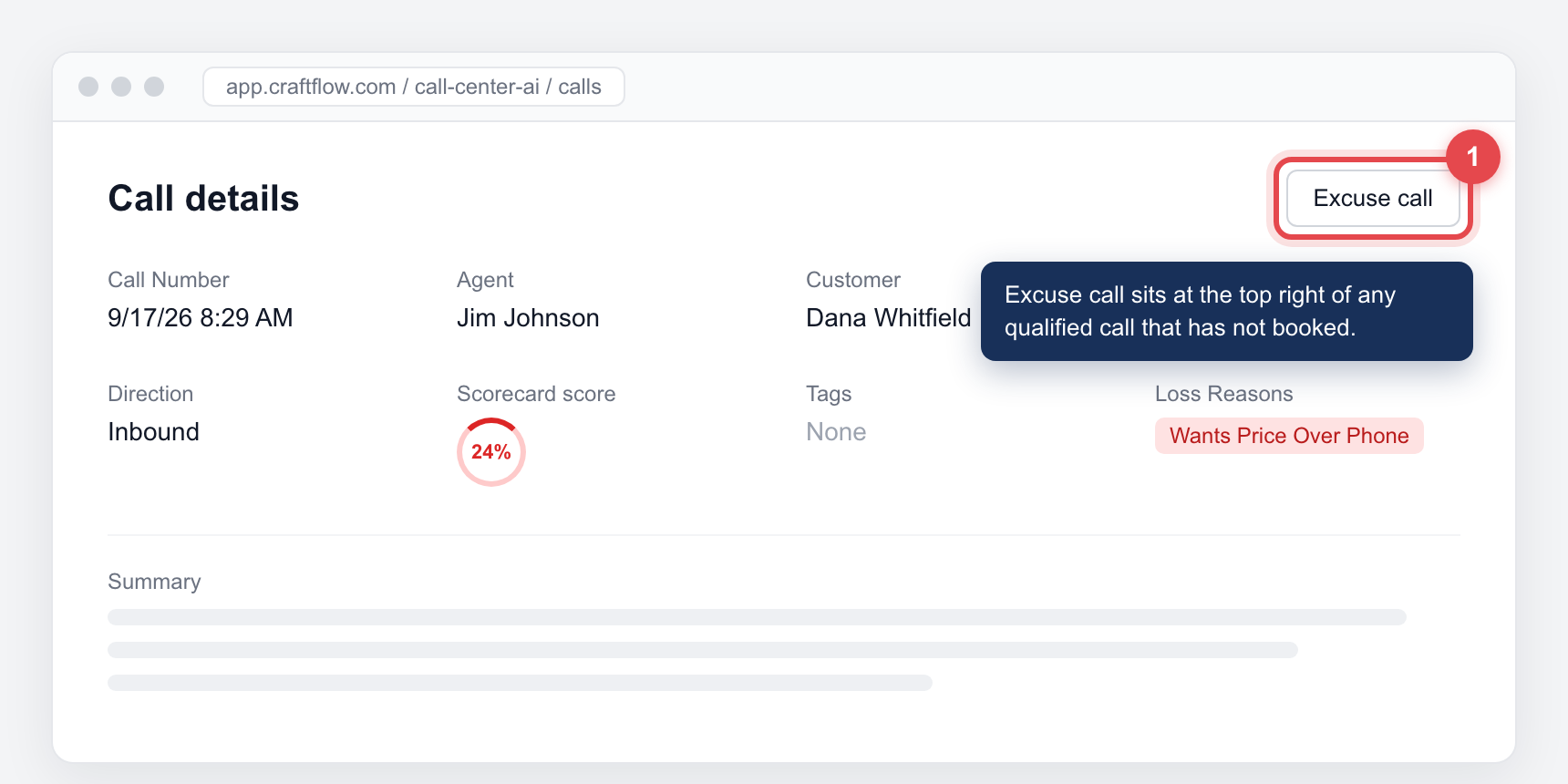
The button shows on calls that are qualified, have not booked, and have not already been excused. If a call is not qualified or already booked, there’s nothing to excuse and the button is hidden.
Give a reason
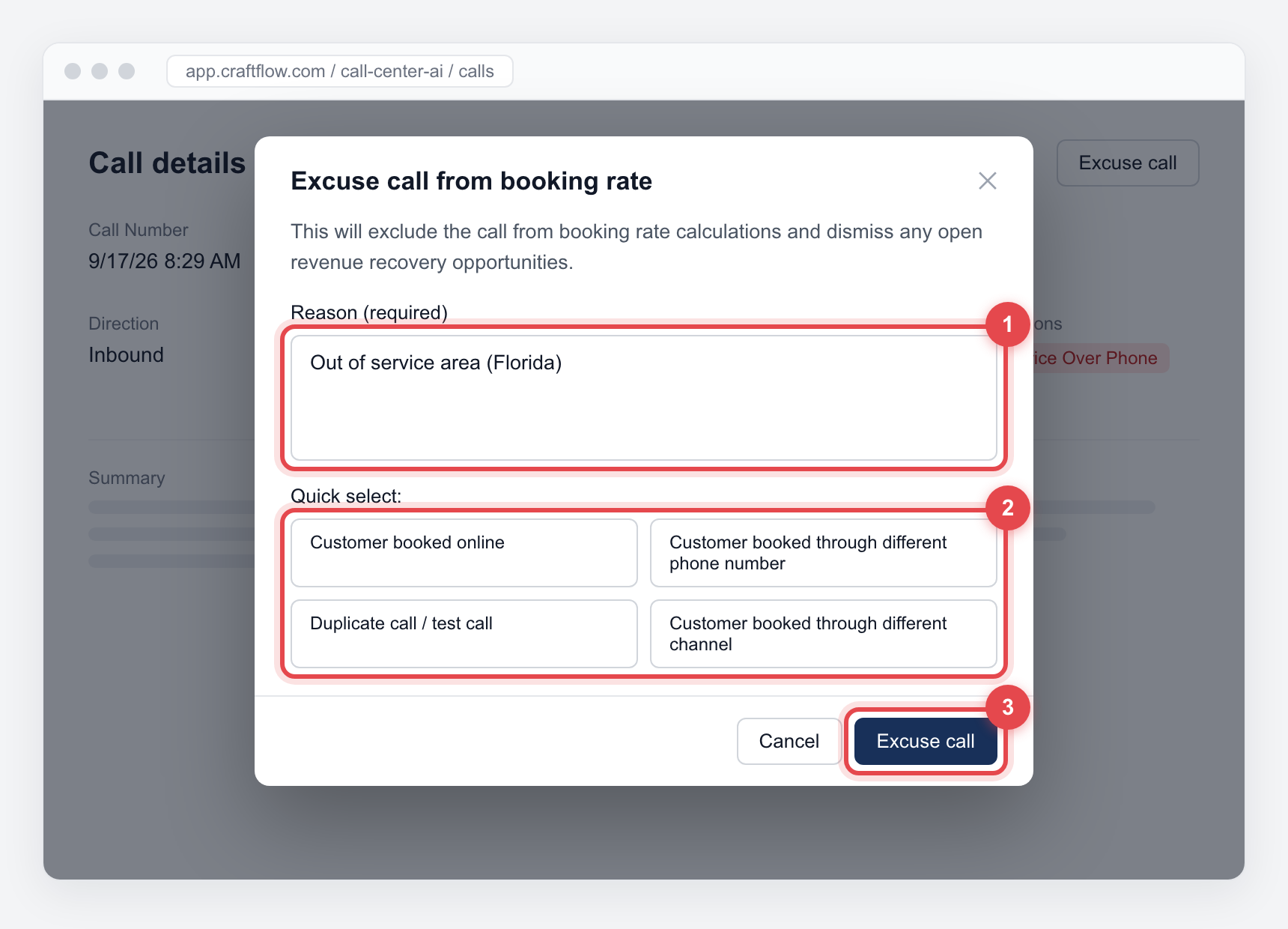
A reason is required. Type your own (1), such as “Out of service area (Florida)”, or click one of the quick select options (2):
- Customer booked online
- Customer booked through different phone number
- Duplicate call / test call
- Customer booked through different channel
Then click Excuse call (3).
Confirm it worked
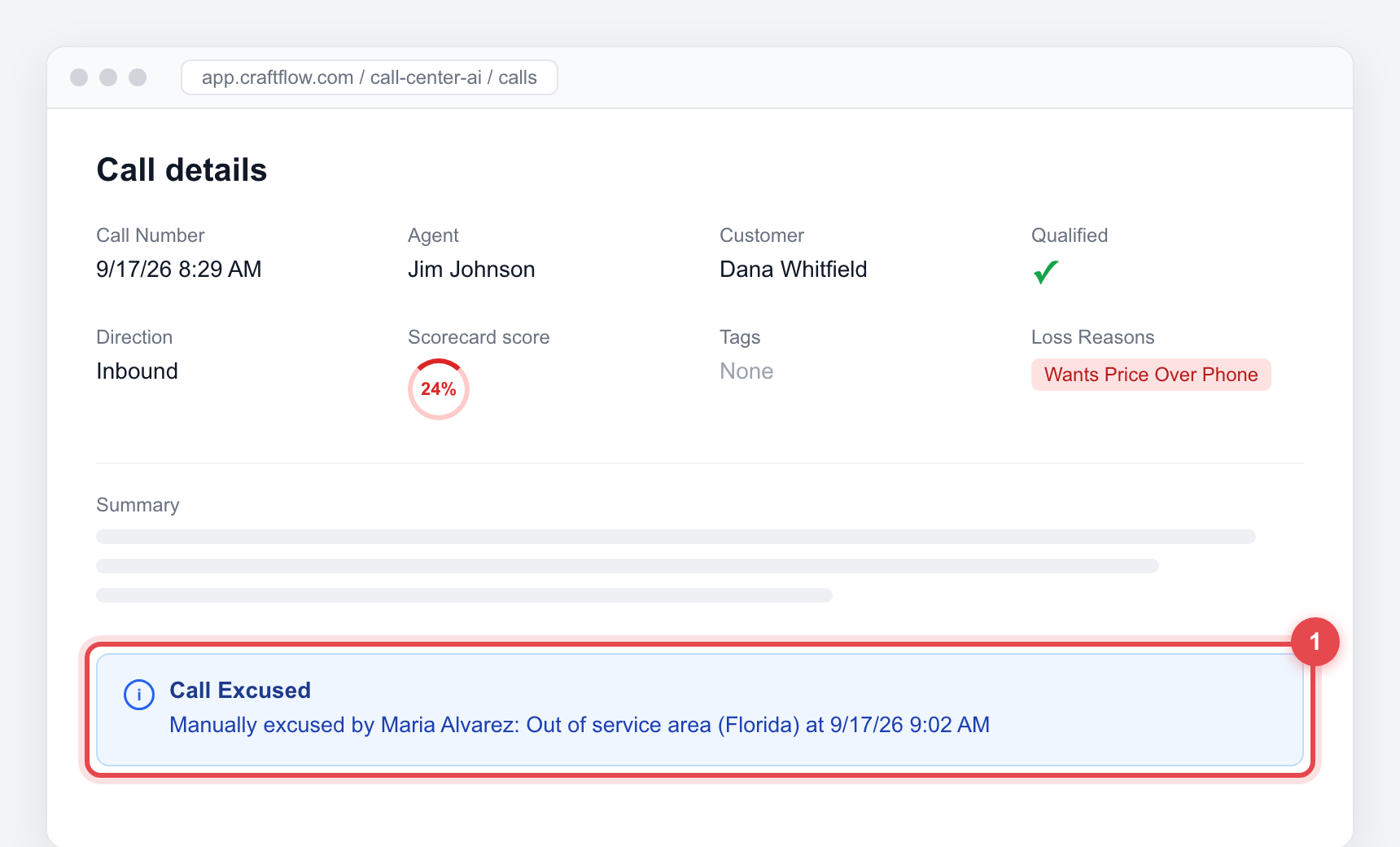
A blue Call Excused banner appears on the call with your name, your reason, and the time.
What excusing changes
- The call no longer counts in booking rate calculations.
- Any open revenue recovery follow-ups for that call are dismissed.
- The call stays in your call list and reports, with its recording, transcript, and scorecard. The Qualified checkmark stays as it was. The excused banner is the record of your correction.
An excused call can’t be un-excused from the app. If you excuse one by mistake, contact support@craftflow.com.
Set the rules for what counts as qualified
Excusing fixes one call. To fix the pattern, add a custom rule so Craft handles similar calls correctly going forward.
Open Qualification & Booking settings
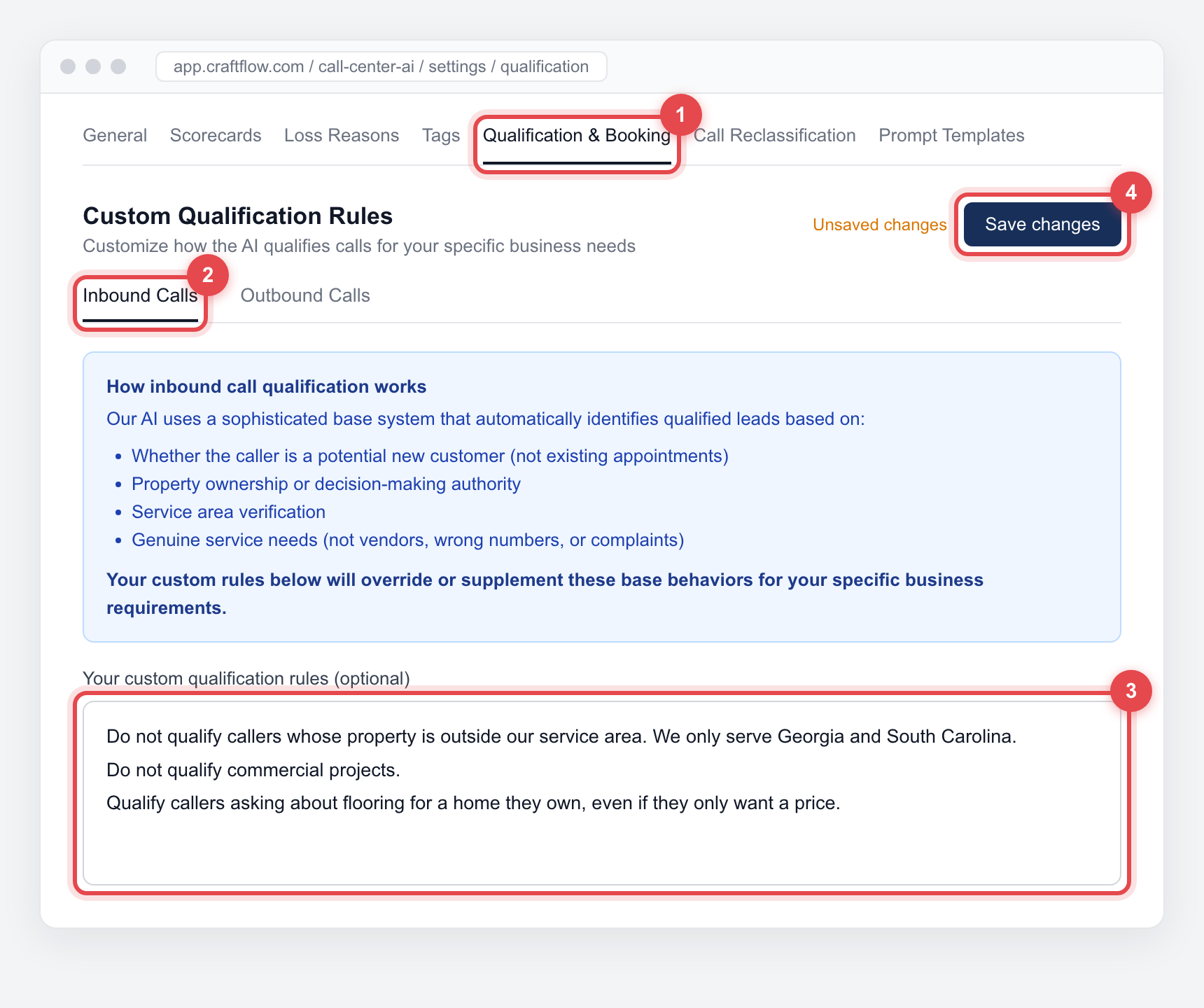
Go to Contact Center, open Settings, then click the Qualification & Booking tab (1).
Pick Inbound Calls or Outbound Calls
Each direction has its own rules (2). The blue box at the top lists what Craft checks by default.
For inbound calls, Craft looks at:
- Whether the caller is a potential new customer (existing appointments don’t count)
- Property ownership or decision-making authority
- Service area
- A genuine project need (vendors, wrong numbers, and complaints don’t count)
Write your rules in plain language
Type your rules in the Your custom qualification rules box (3), one per line. Your rules take priority over the defaults.
Examples:
- “Do not qualify callers whose property is outside our service area. We only serve Georgia and South Carolina.”
- “Do not qualify commercial projects.”
- “Qualify callers asking about flooring for a home they own, even if they only want a price.”
Click Save changes
Click Save changes (4). New rules apply to calls processed after you save. Calls already in your list keep their original result, so excuse any older ones that shouldn’t count.
Be specific. “Do not qualify callers outside Georgia and South Carolina” works better than “Do not qualify bad leads”. After a week, hover over the checkmark on a few new calls to confirm the reasons match what you expect.
Calls that get excused automatically
Craft can excuse duplicate opportunities for you. When a customer books on a later call, the earlier qualified call from the same phone number or customer record is excused, so one opportunity isn’t counted twice.
This is on by default with a 48-hour lookback window. To change it, go to Contact Center, open Settings, then click Call Reclassification. Calls excused this way show a View booking call link in the banner.
Common questions
A call is marked qualified but shouldn't be. How do I change it?
Open the call, click Excuse call, and give a reason. That removes it from your booking rate. Then add a custom rule in Settings → Qualification & Booking so similar calls aren’t qualified in the future.
A call is marked not qualified but should be. What do I do?
Hover over the red X to read why. Then add a custom rule that covers the situation, for example “Qualify callers who ask for a quote even if they don’t confirm ownership”. The rule applies to new calls. If you need an existing call corrected, contact support@craftflow.com.
I don't see the Excuse call button.
The button only shows on calls that are qualified, not booked, and not already excused. If the call meets all three and the button is still missing, ask your Craft admin to check your permissions.
Does excusing a call delete it?
No. The recording, transcript, scorecard, and coaching all stay. The call just stops counting toward booking rate.
Why does a call show a red X with no reason on hover?
The call never connected, so there was no conversation for Craft to review.