

Every team has a handful of calls people still talk about: the rebuttal that saved a deal, the close that landed on the first visit. The Library is where those moments stop being stories and become something a rep can play.
A clip is a short slice of a real recording. You pick the moment, name it, drop it in a folder, and anyone with access can play it or send a link to it.
The Library works the same way in Field Sales and Contact Center. Field Sales clips come from recordings, Contact Center clips come from calls. Everything else on this page applies to both.
Field Sales Library → · Contact Center Library →
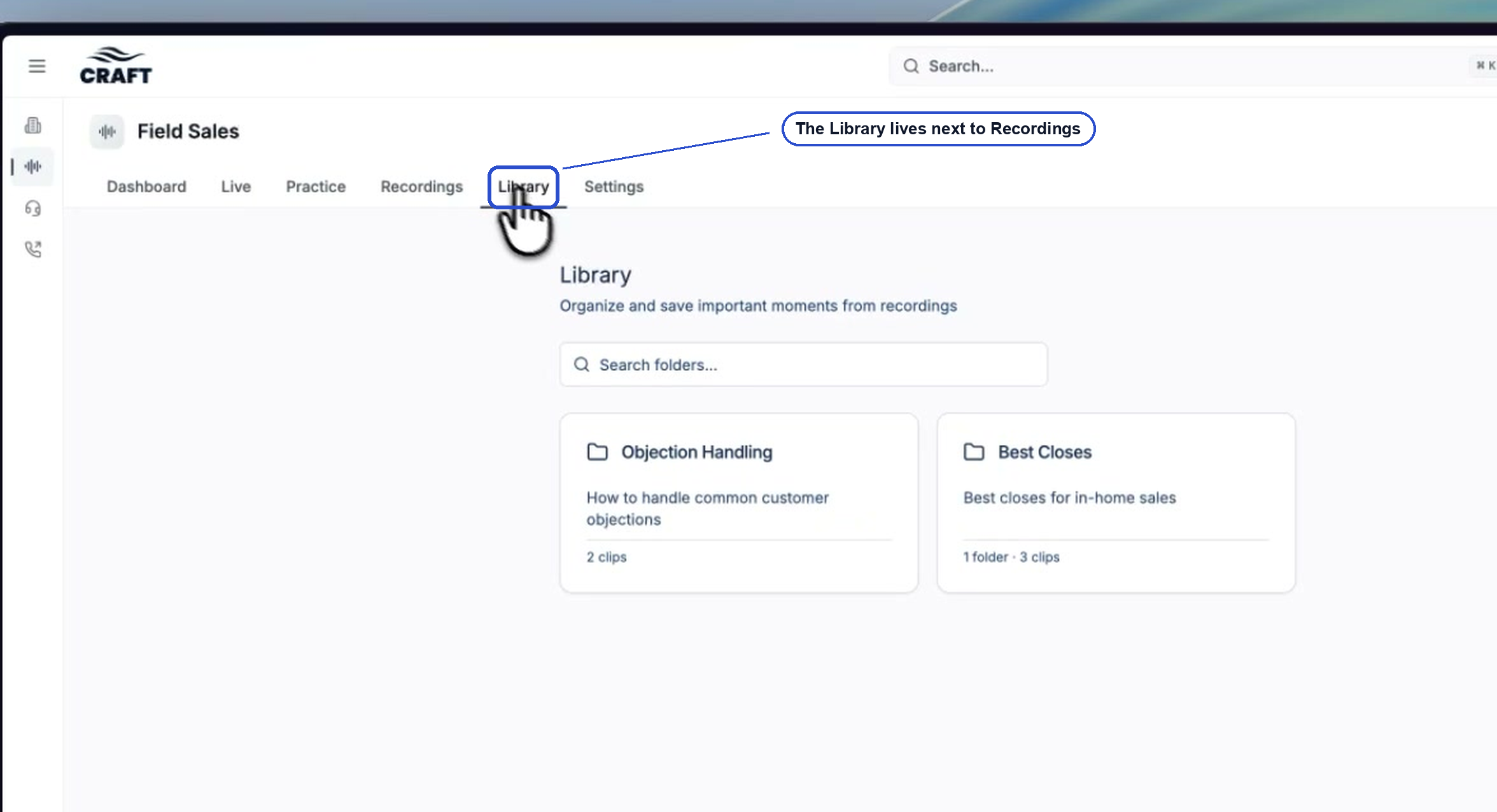
Start with folders
Clips only help if someone can find them. Build the folders first, then fill them.
Name folders after whatever a rep is stuck on: Objection Handling, Price Pushback, Great Openers, Best Closes. Someone who just got hammered on price should be able to scan the folder names and know exactly where to go.
Click New folder
Open the Library in Field Sales or Contact Center. The button sits in the top right.
Name it, describe it, and pick who can see it
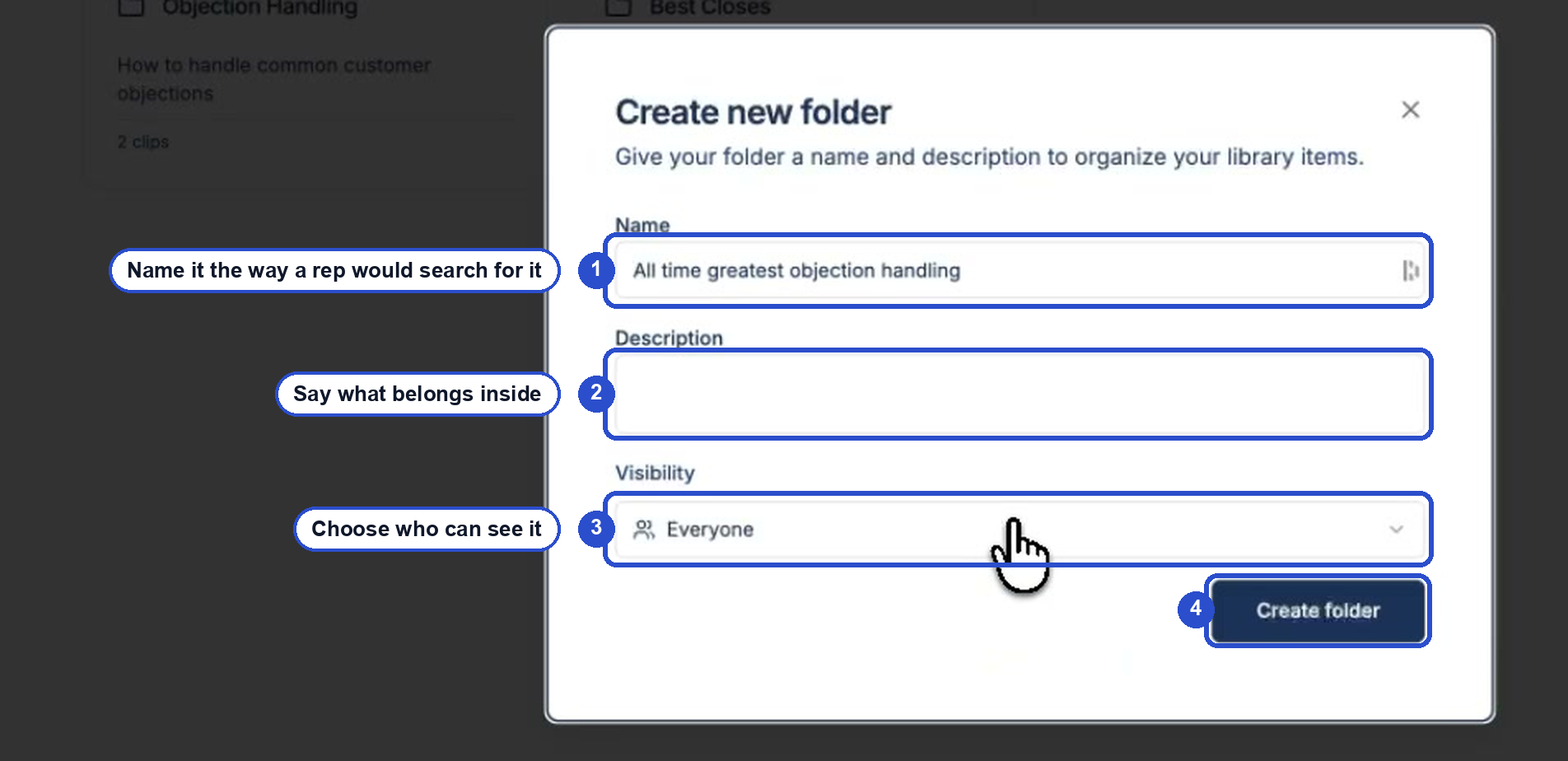
- Name is the only required field. Use the words a rep would search for.
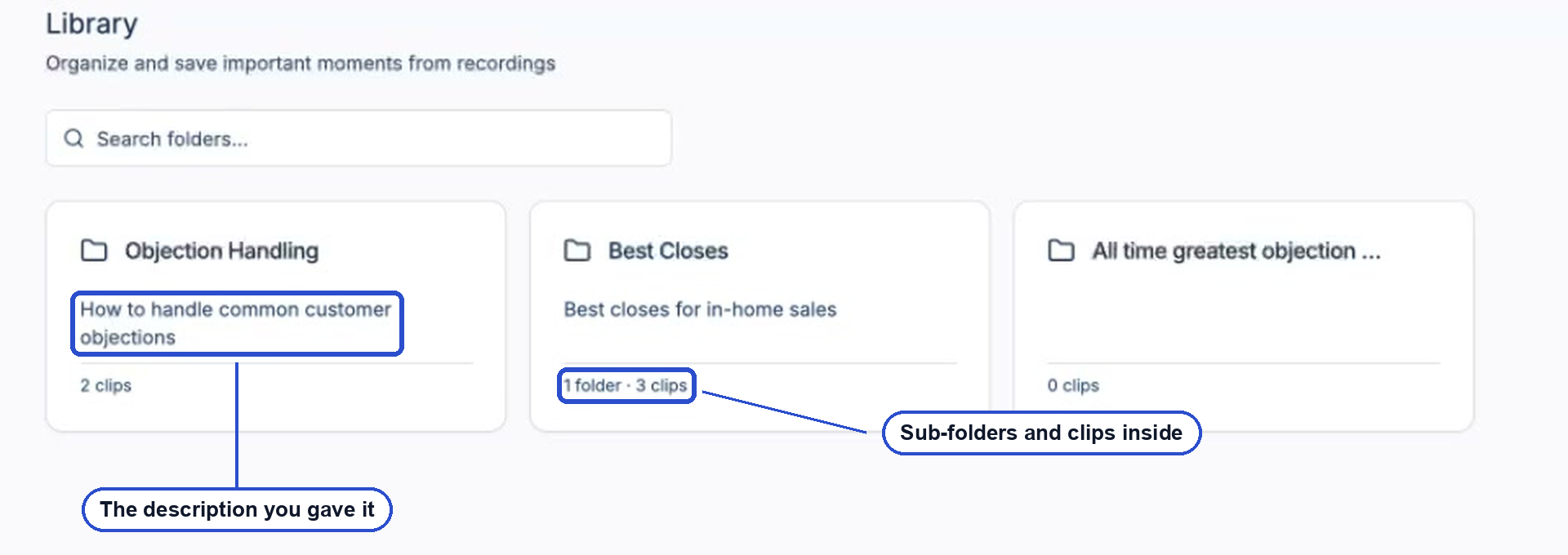
- Description shows on the folder card, so use it to say what belongs inside.
- Visibility controls who can open the folder. It defaults to Everyone.
- Create folder saves it, and the folder appears right away.
Choosing visibility
| Visibility | Who can open the folder |
|---|---|
| Everyone | Every team member |
| Coaches & Admins | Coaches and admins |
| Admins Only | Admins |
Most coaching folders should stay on Everyone. Reserve the restricted options for material you only want managers reviewing, like calls you are using for a performance conversation.
In Field Sales, if your company restricts coaches to their own team, the dialog adds a Visible to field where you pick a single team or All teams. Sub-folders inherit the team from the folder above them.
Nest folders inside folders
Open any folder and click New sub-folder in the top right. The dialog is the same one you just used.
Sub-folders are worth it once a topic gets deep. Objection Handling holds everything; Objection Handling / Spouse Not Home is what a rep actually opens before a 6pm appointment.
Back on the Library page, each card shows what is inside, so you can tell a live folder from an empty one at a glance.
Add a clip
Open the call and find the moment
Go to Recordings in Field Sales or Calls in Contact Center and open the one you want. Key Moments in the right panel jump you straight to price talk, discovery, and the close, which is usually faster than scrubbing the audio.
Hover the transcript and click the folder icon
Hover any line of the transcript and a small toolbar appears. The folder icon is Save to library.
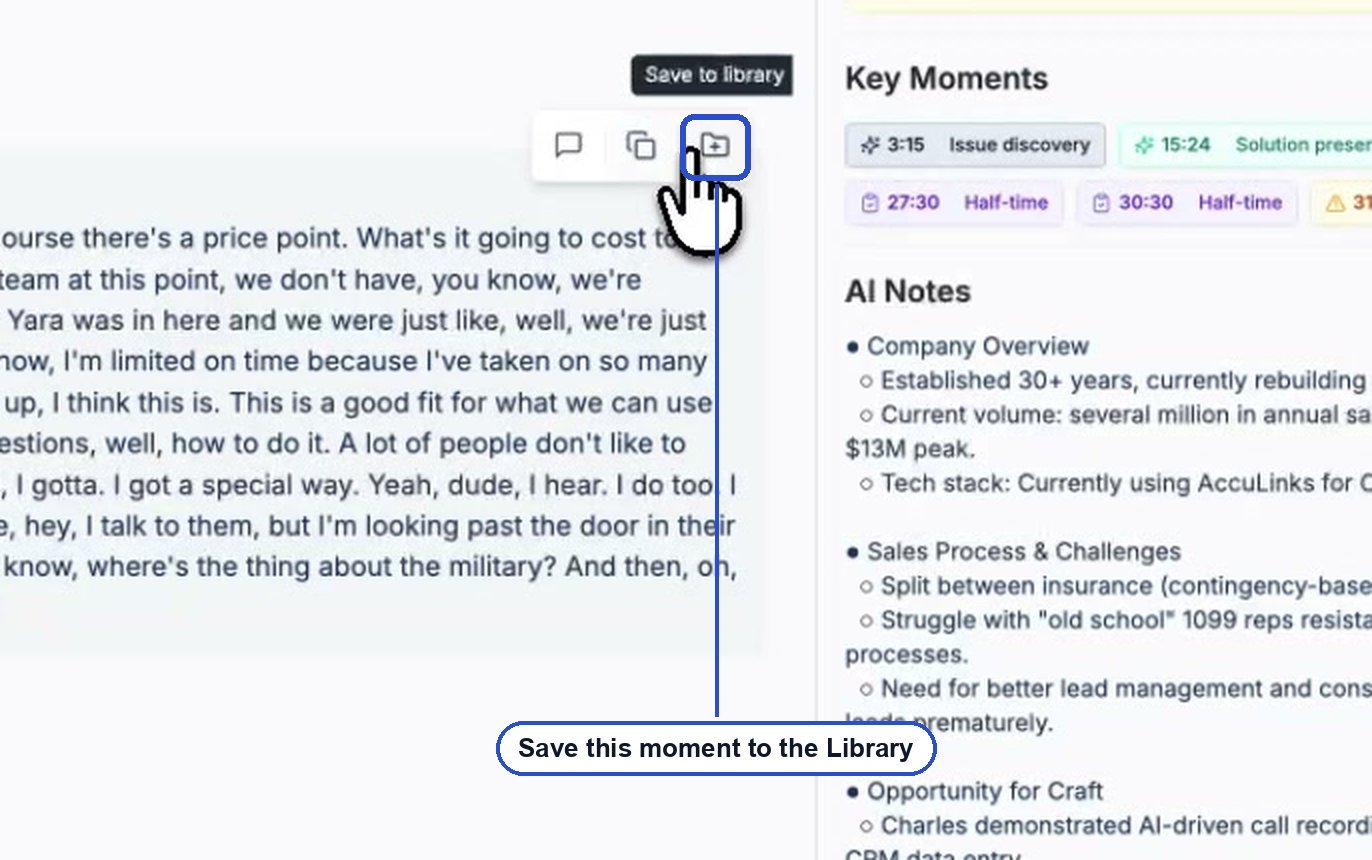
Craft starts the clip at exactly the line you clicked. To be more precise, select the words you want first, then click the icon.
There is also a Save to Library button at the top of the recording. That one opens with the whole recording loaded, which is handy when the moment you want spans several speakers.
Name it and choose a folder
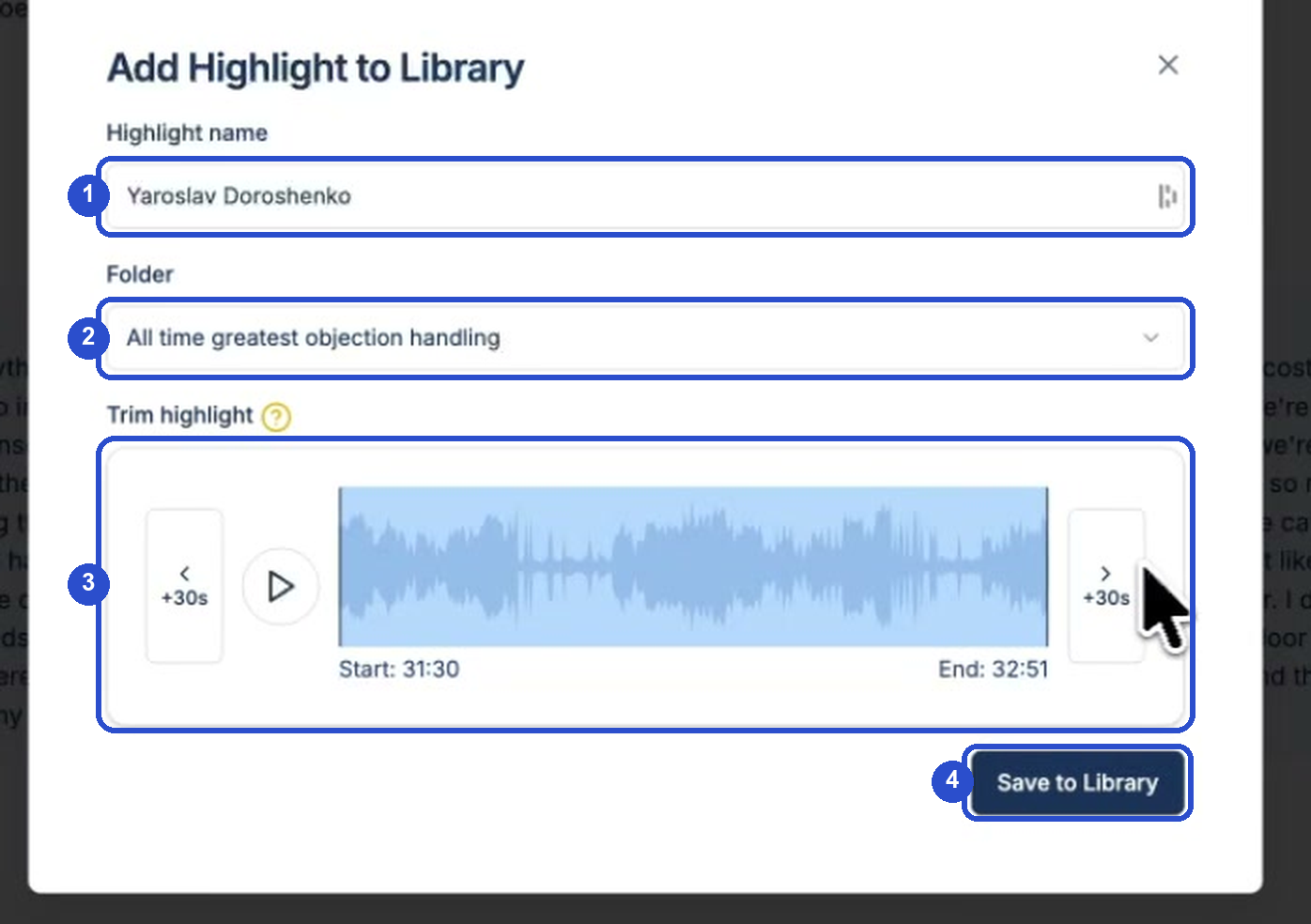
- Highlight name is prefilled with the recording’s name. Rename it to what the clip teaches, like “Reframes price against the 20 year warranty”. That name is all anyone sees in the folder.
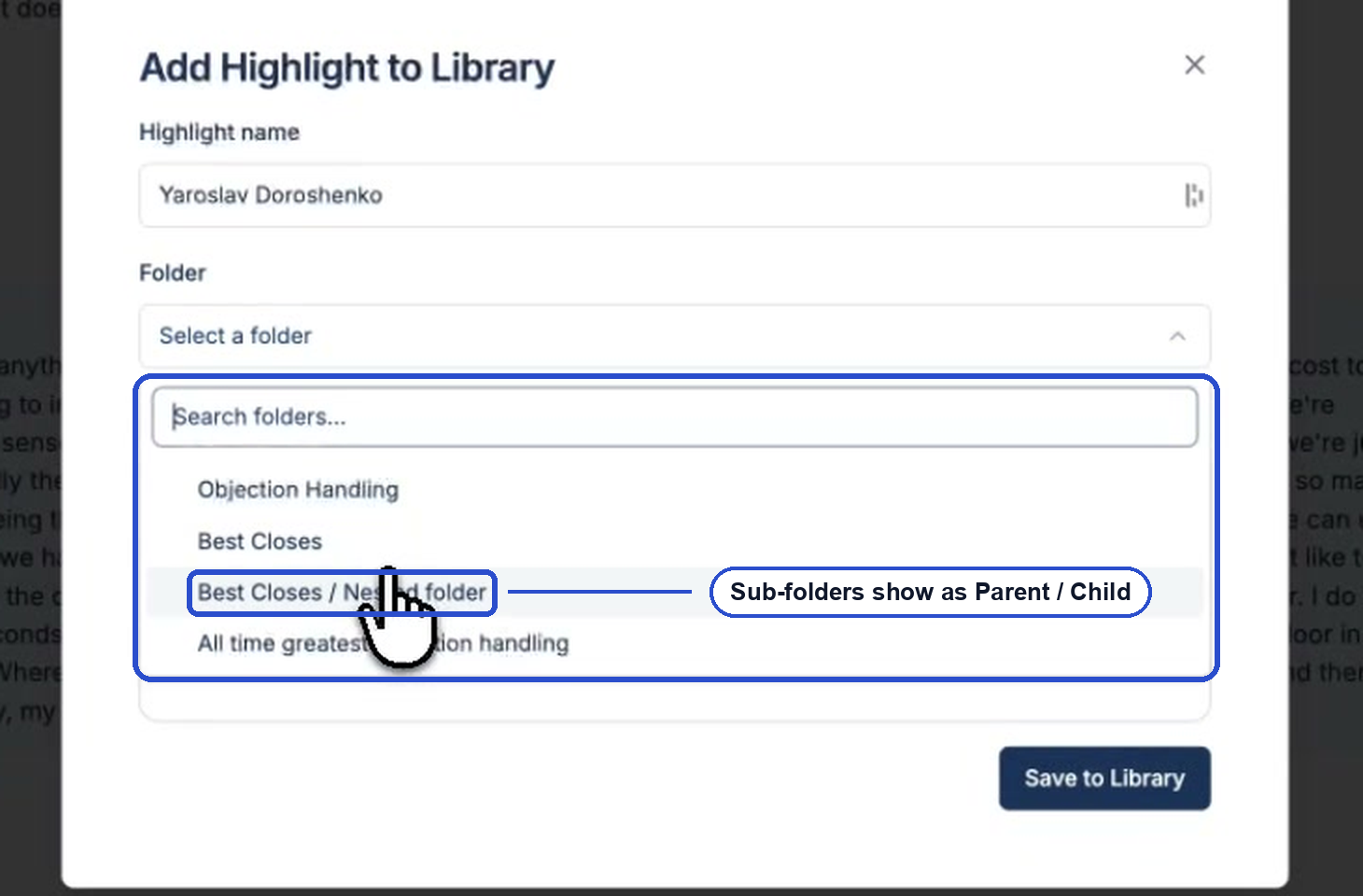
- Folder is required. Start typing to search. Sub-folders show their full path.
- Trim highlight is where you tighten it up. Drag the blue bars, press play to check, and use the +30s buttons on either side when you need to reach further into the call.
- Save to Library.
Aim for 30 to 90 seconds. Long clips get skipped. If the setup matters, say so in the name instead of padding the clip.
Grab the share link
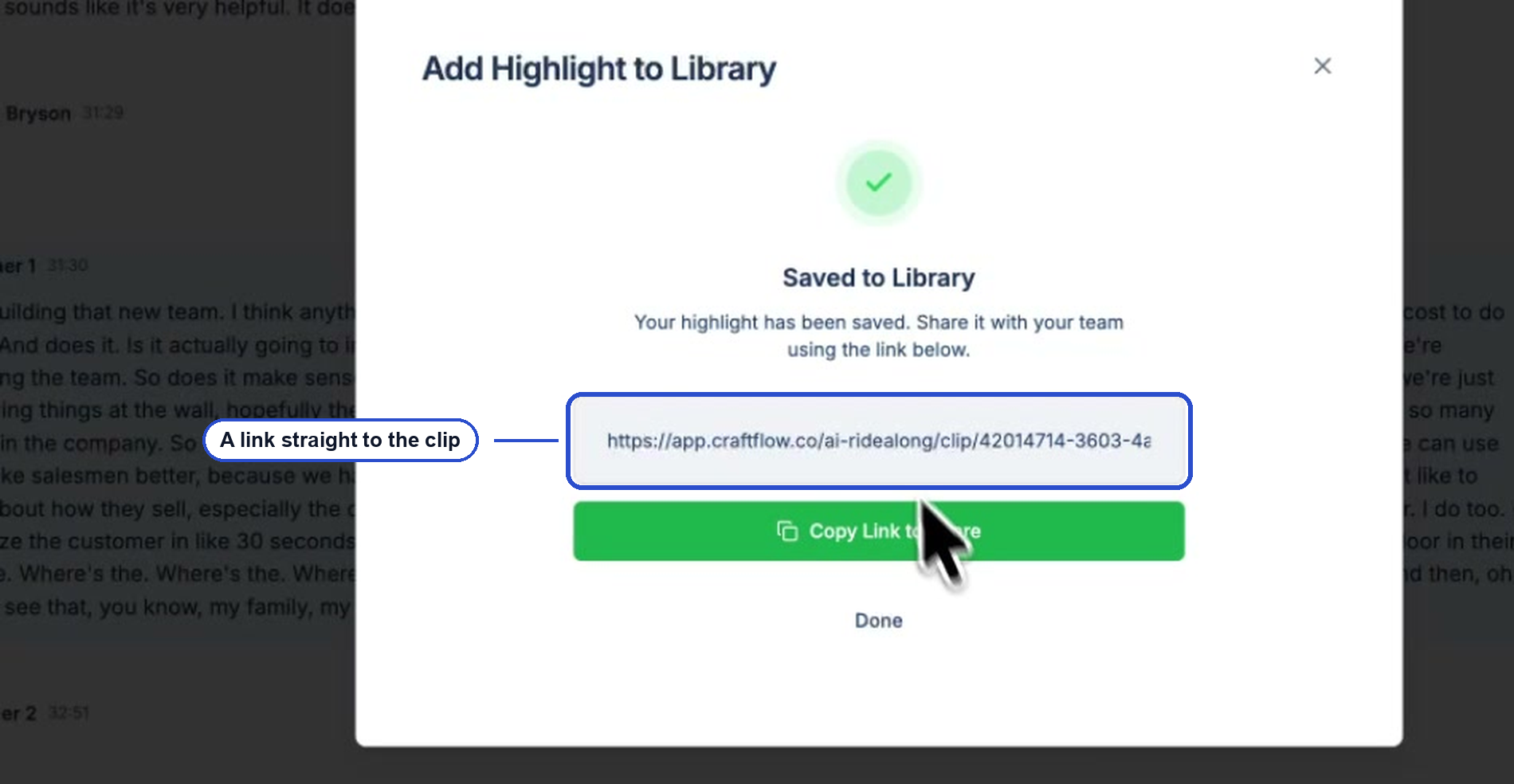
Craft confirms the save and hands you a direct link to the clip. Copy Link to Share puts it on your clipboard, ready for a text, a Slack message, or a coaching agenda.
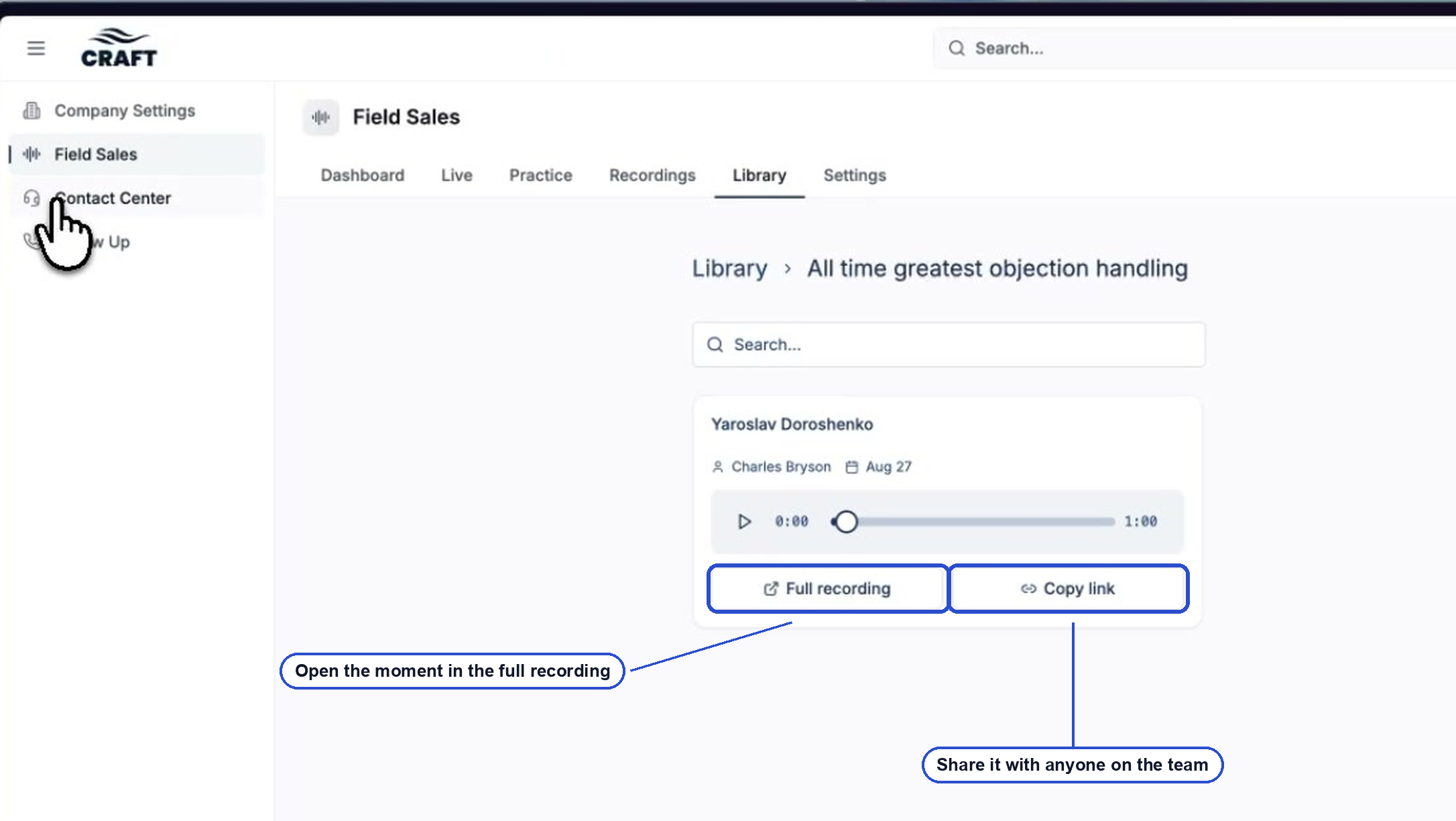
Play and share what’s in a folder
Open a folder and every clip is a card you can play in place. Full recording opens the original call at that moment, so the context is one click away. Copy link gives you the same shareable link as the save screen.
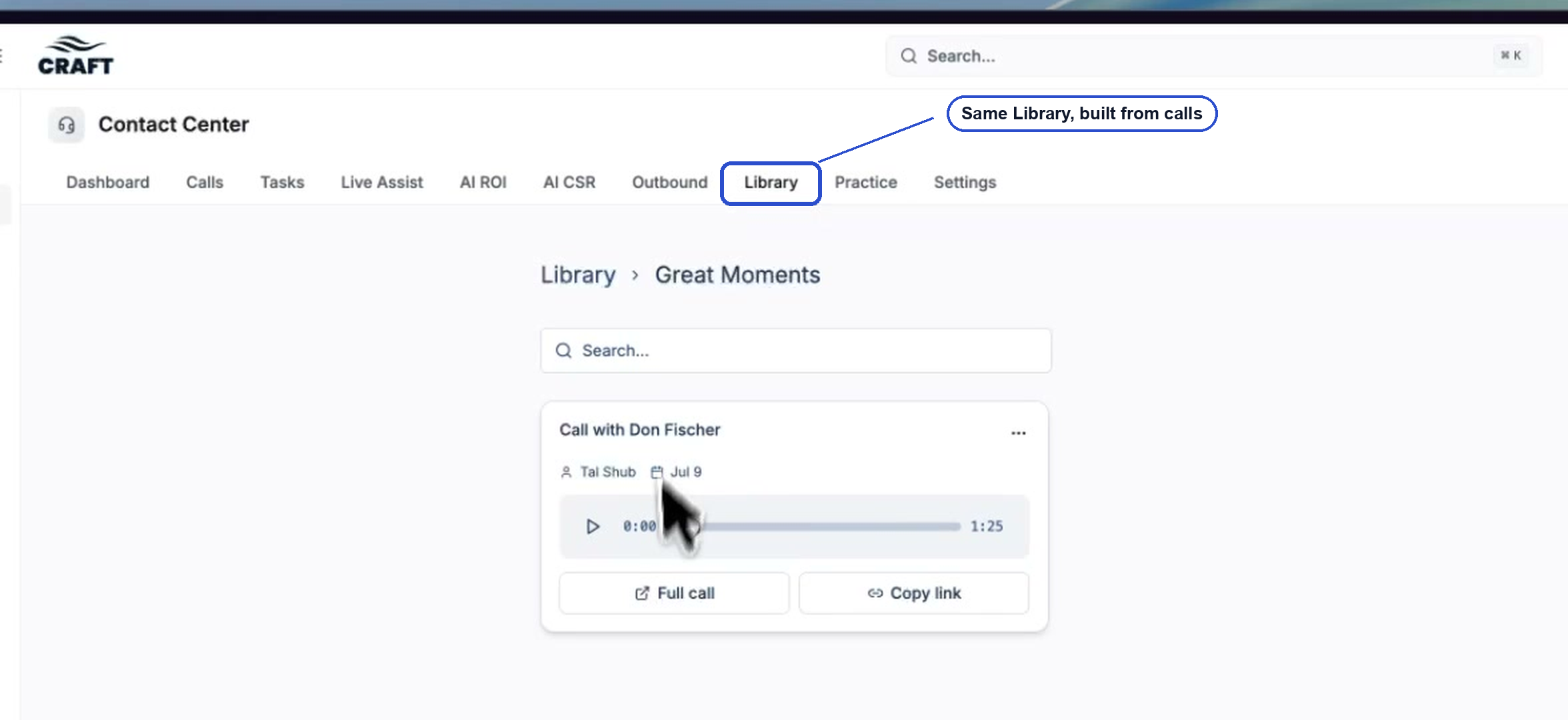
In Contact Center the flow is identical, with the wording matched to calls. The card button reads Full call.
Empty folders show a Browse recordings (or Browse calls) button that drops you into the list, so you can go fill them.
Who can do what
- Coaches and admins create, rename, and delete folders and sub-folders, and remove clips from a folder.
- Anyone who can open a recording can save a clip from it into any folder they can see.
- Removing a clip from a folder never affects the original recording.
Make it stick
The Library earns its keep when reps open it without being told to.
- Seed it before you launch it. Ten strong clips across three or four folders beats an empty shelf with perfect names.
- Send the clip link directly. A 60 second clip in a text message gets listened to on the way to the next appointment.
- Add one clip a week from your own calls. Ride-alongs and QA reviews are already surfacing the moments. Saving one takes about fifteen seconds.
- Put the best clip in the folder description. New reps read the card before they open anything.