

Manage who has access to Craft from Company Settings > People. This is where you add new team members, set their permissions, assign them to teams, and deactivate people who have left.
Managing users requires Admin permissions (Full Admin or Super Admin). If you don’t have admin access, you can view the People list but you won’t see the Add user button or the per-user actions menu. Ask an admin at your company to make the change, or email support@craftflow.com.
Open the People page
Open Company Settings
From the main sidebar, click Company Settings.
Go to the People tab
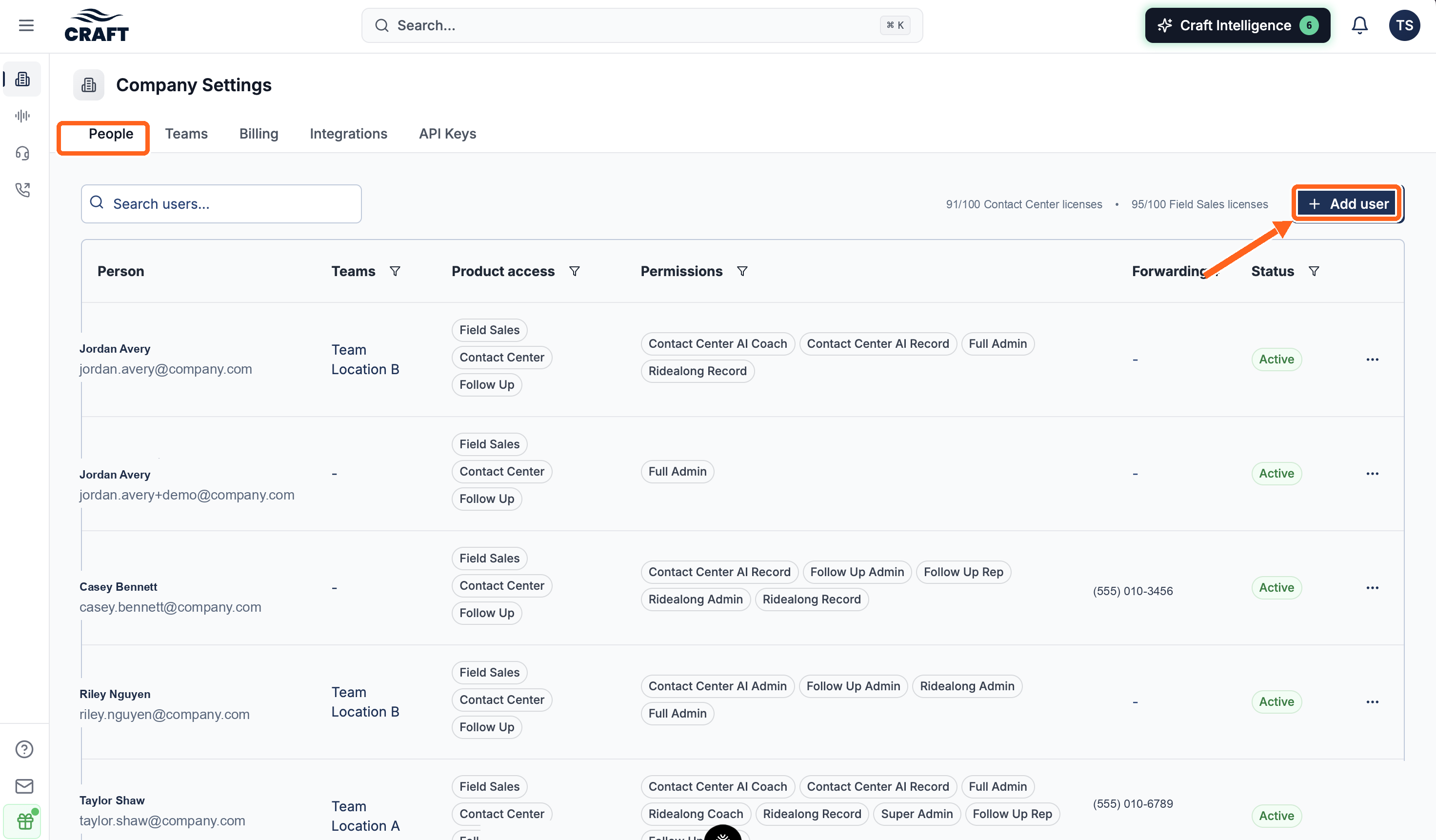
Select the People tab. You’ll see every user at your company with their status (Active or Inactive), permissions, and teams.
Add a new user
Click Add user
On the People page, click Add user in the top right. The Add new user dialog opens with three steps across the top.
1. User Info
Enter the person’s First Name, Last Name, and Email. All three are required. The invitation is sent to this email address, so double-check it.
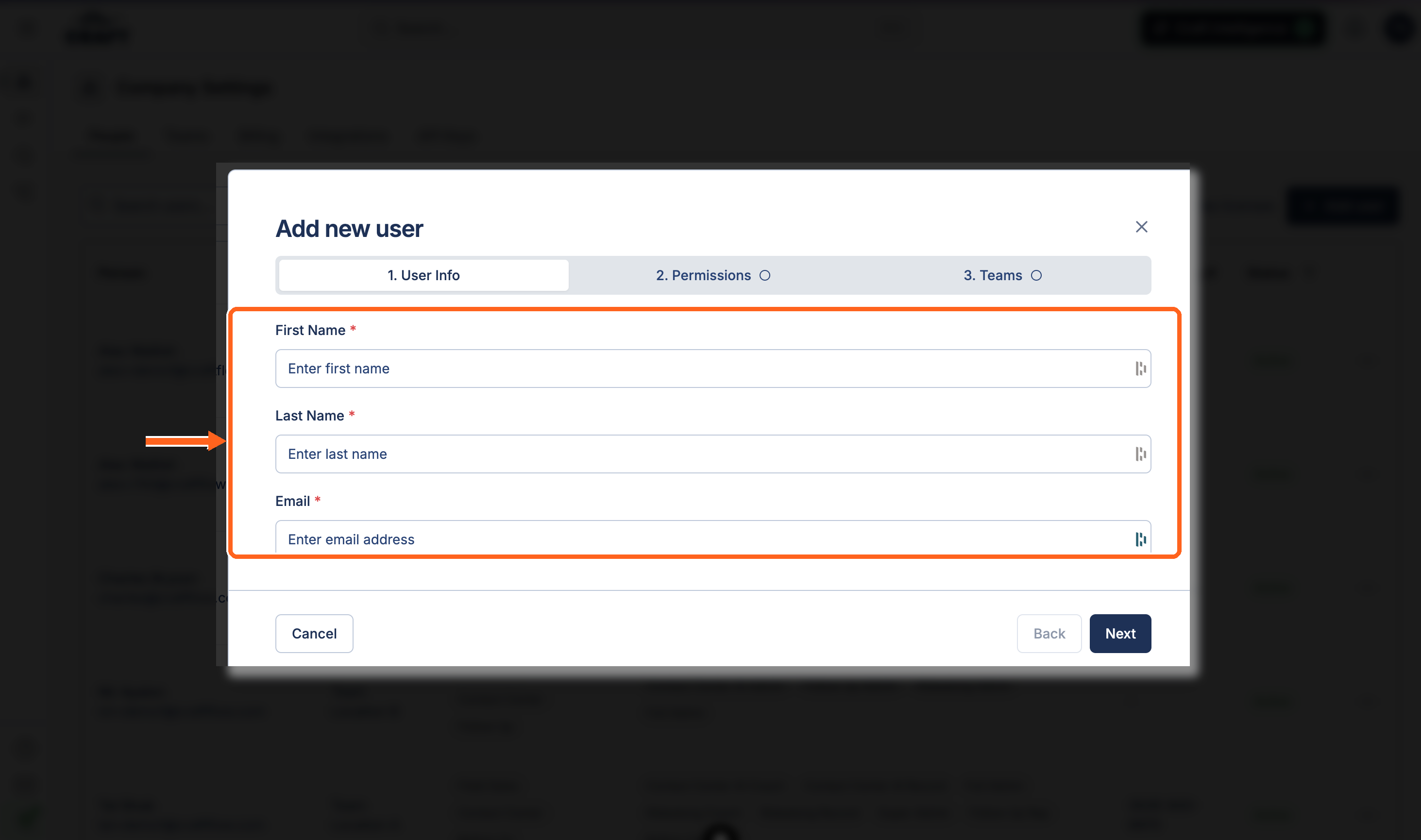
Click Next.
2. Permissions
Choose what this person can do. Permissions are grouped into Admin Permissions and Product-specific Permissions (only the products your company has appear).
| Permission | What it grants |
|---|---|
| Full Admin | Full access, including managing users, permissions, teams, and company settings. |
| Super Admin | Highest level of access across the company. Reserved for owners. |
| Coach (per product) | View team recordings and add coaching feedback for that product. |
| Record (per product) | Record and view their own calls/appointments for that product. |
| Admin (per product) | Manage settings for that specific product. |
Give admin access sparingly. Only Full Admins and Super Admins can add, edit, or deactivate users.
Click Next.
3. Teams
Assign the user to one or more teams (for example, “North Region” or “Call Center”). You can create a new team inline if you need one. Teams control which dashboards and recordings the person sees.
Send the invitation
Click Send invitation. The new user receives a setup email and appears on the People page with an Invite pending status until they finish signing in.
If someone didn’t get their invite, open the actions menu (⋯) on their row and choose Resend invitation.
Deactivate a user
Deactivate a user when they leave your company or no longer need access. Deactivating removes their access and frees up their license.
Find the user
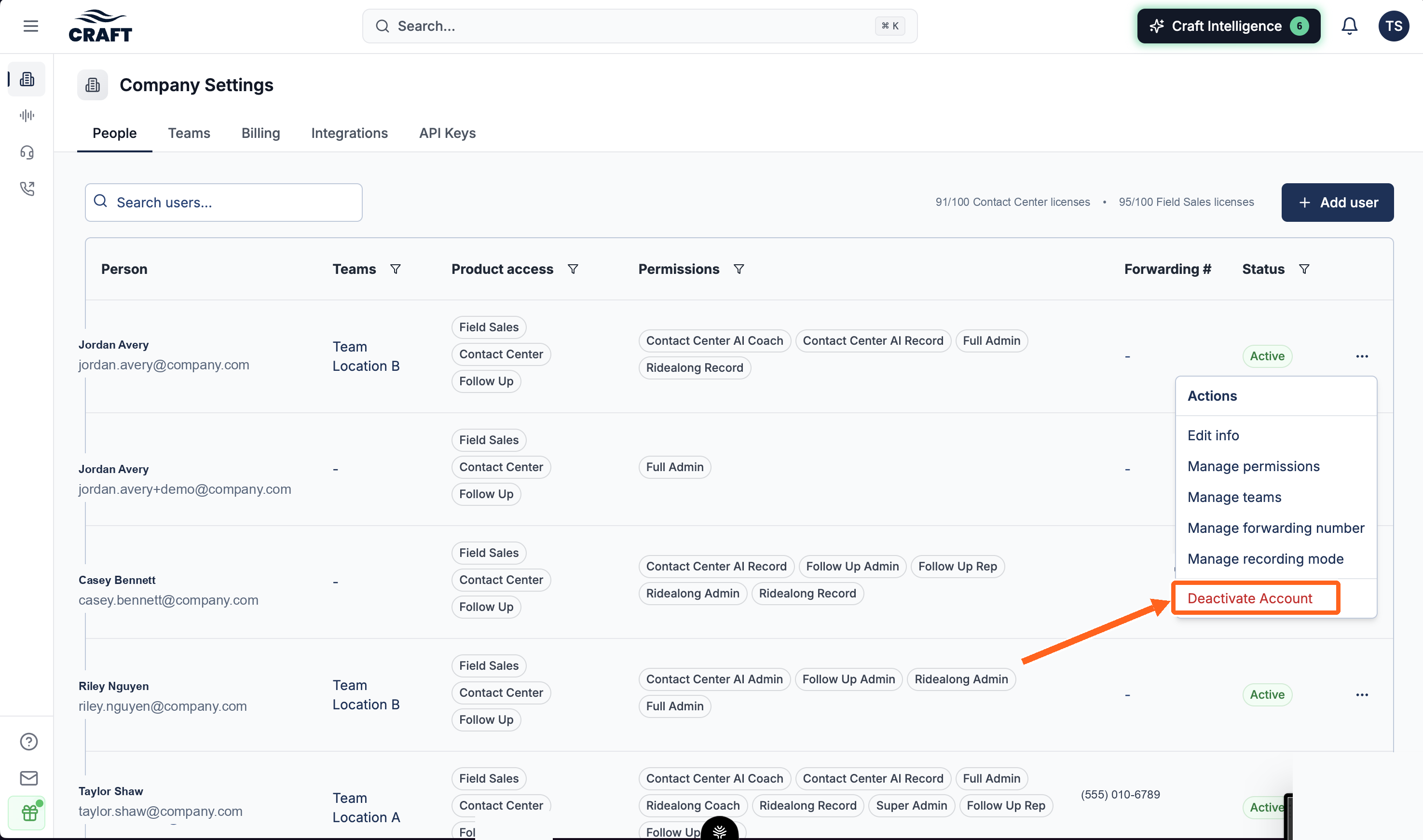
On the People page, find the person you want to remove.
Open the actions menu
Click the ⋯ (three-dot) menu at the end of their row and choose Deactivate Account.
Confirm
A confirmation appears:
Are you sure you want to deactivate [name]?
You won’t be able to reactivate this user without contacting support.
Confirm to deactivate. The user’s status changes to Inactive and they lose access to Craft immediately.
Deactivate carefully. As the confirmation warns, reactivating a user may require contacting support. An admin can attempt a reactivation from the same ⋯ menu (Reactivate Account); if that isn’t available, email support@craftflow.com.
Common questions
Who can add or deactivate users?
Only Full Admins and Super Admins. Everyone else can view the People list but not change it. If you need admin access, ask an existing admin at your company.
Does deactivating a user delete their recordings or data?
No. Deactivating only removes the person’s access. Their past recordings, scores, and coaching history stay in Craft.
Can I change someone's permissions or teams later?
Yes. Open the ⋯ menu on their row to edit their info, manage permissions, or change their team assignments at any time.
How do I reactivate someone I deactivated?
An admin can try Reactivate Account from the ⋯ menu on the inactive user’s row. If reactivation isn’t available, email support@craftflow.com and we’ll restore the account.
Need help? Email support@craftflow.com.