

An automation is a question you save. You pick when it runs and who gets the answer, and Craft does the rest: every run, it digs through your latest data, answers the question fresh, and sends the result as an email.
That’s the whole idea. Anything you can ask Craft Intelligence — “how did my team do last week?”, “which competitors came up in lost sales?” — you can get automatically, every Monday morning, without asking again.
How it works
- Every email is a fresh answer. Nothing is canned — each run re-analyzes your current data, so “last week” always means last week.
- Every email links back to the conversation that wrote it. Click Continue in the email and ask follow-up questions with all the context loaded.
- Emails arrive from a recognizable subject — the automation’s name plus the period it covers, like Weekly Coaching Focus · Aug 17-23 — so they’re easy to spot and easy to filter.
Set one up
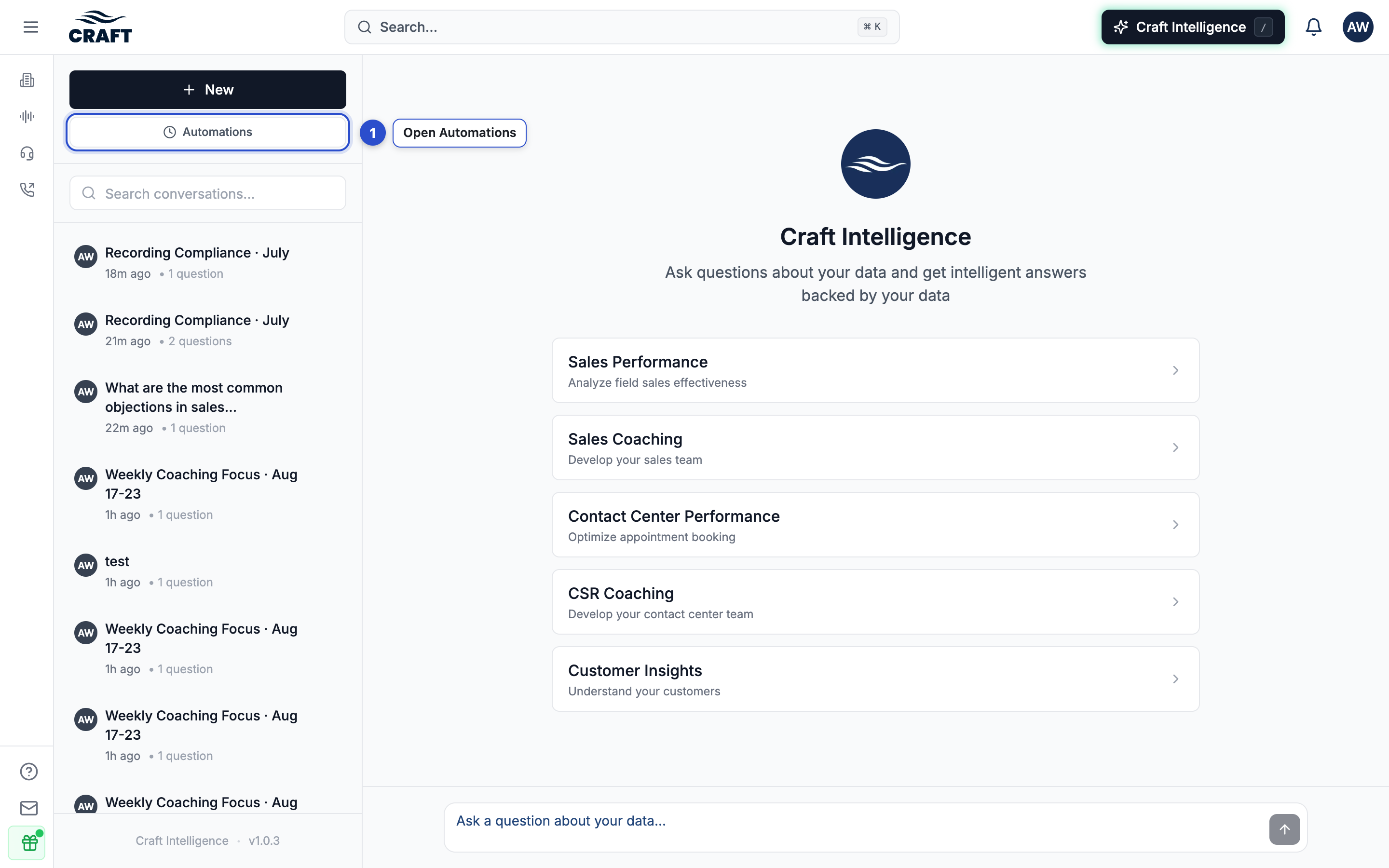
Open Automations
In Craft Intelligence, click Automations at the top of the sidebar.
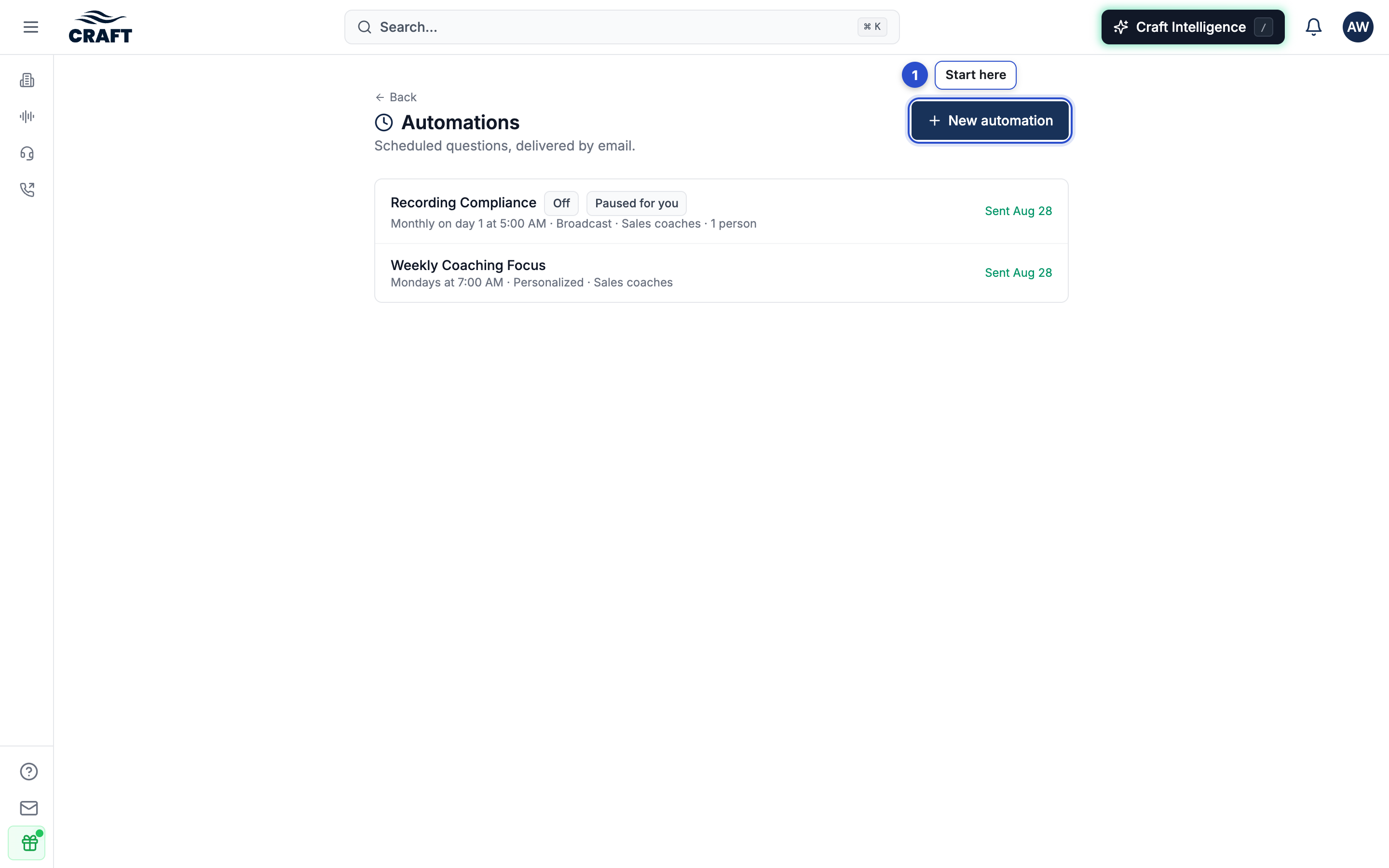
Click New automation
You’ll see any automations you already receive here too — each one shows its schedule and when it last sent.
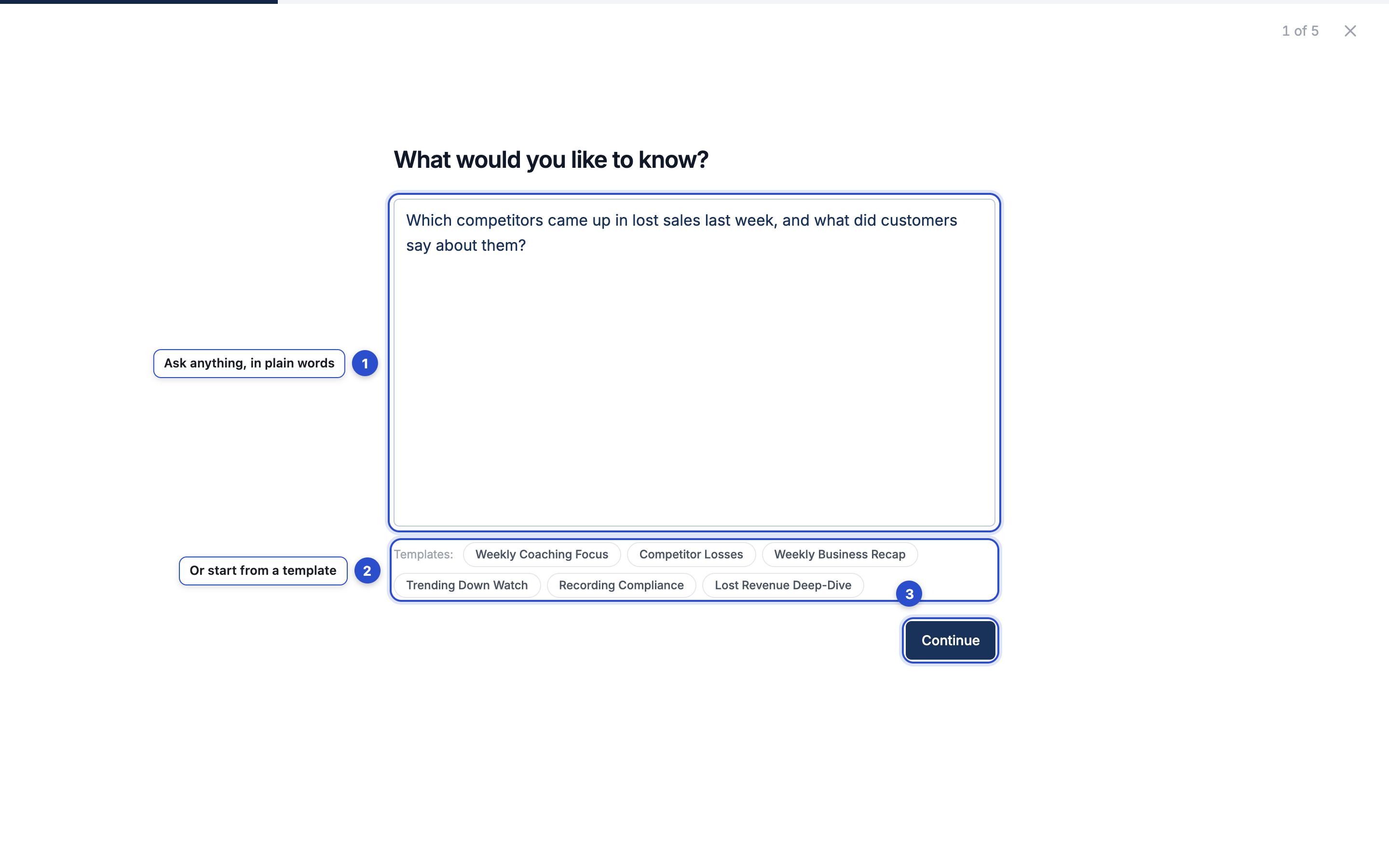
Ask your question
Type it the way you’d say it — plain words work best. Or tap a template below the box to start from a proven question; you can still edit every word of it.
Choose who gets it
Just you, or — if you’re an admin — specific people, teams, or roles. As you pick, Craft shows exactly who that resolves to today, so there are no surprises.
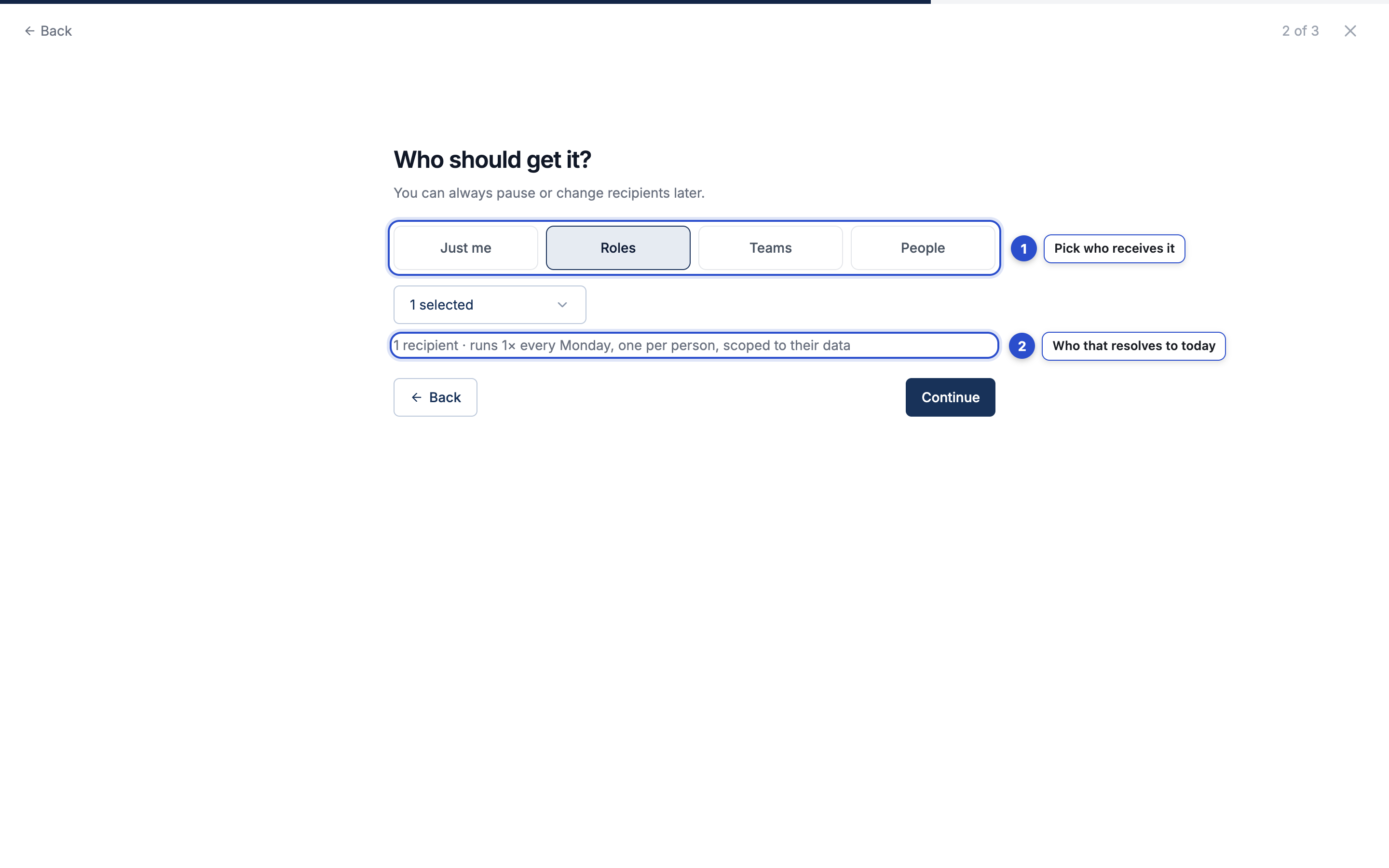
Sending to a group? You’ll also choose between the same report for everyone (one answer, everyone sees identical numbers) or personalized to each person (each recipient gets their own answer, built from their own team’s data).
Review and create
One screen shows everything — the name, the question, who gets it, and when. Change next to any row jumps back to just that step. Click Create automation and you’re done.
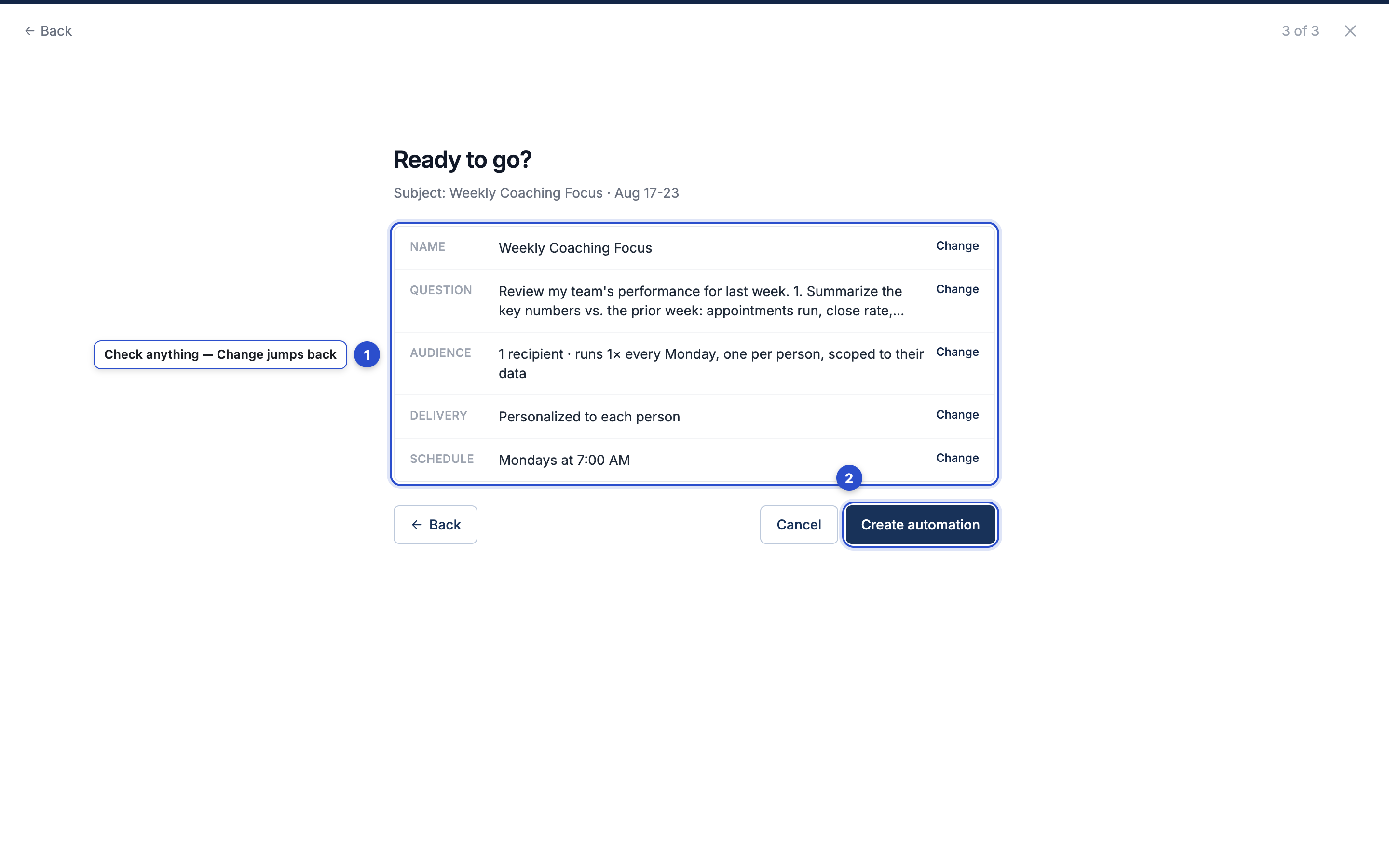
Want to see the email before the schedule fires? Open the automation from the list and click Send me a test — it runs right away and lands in your inbox in a couple of minutes.
The shortcut: automate any question
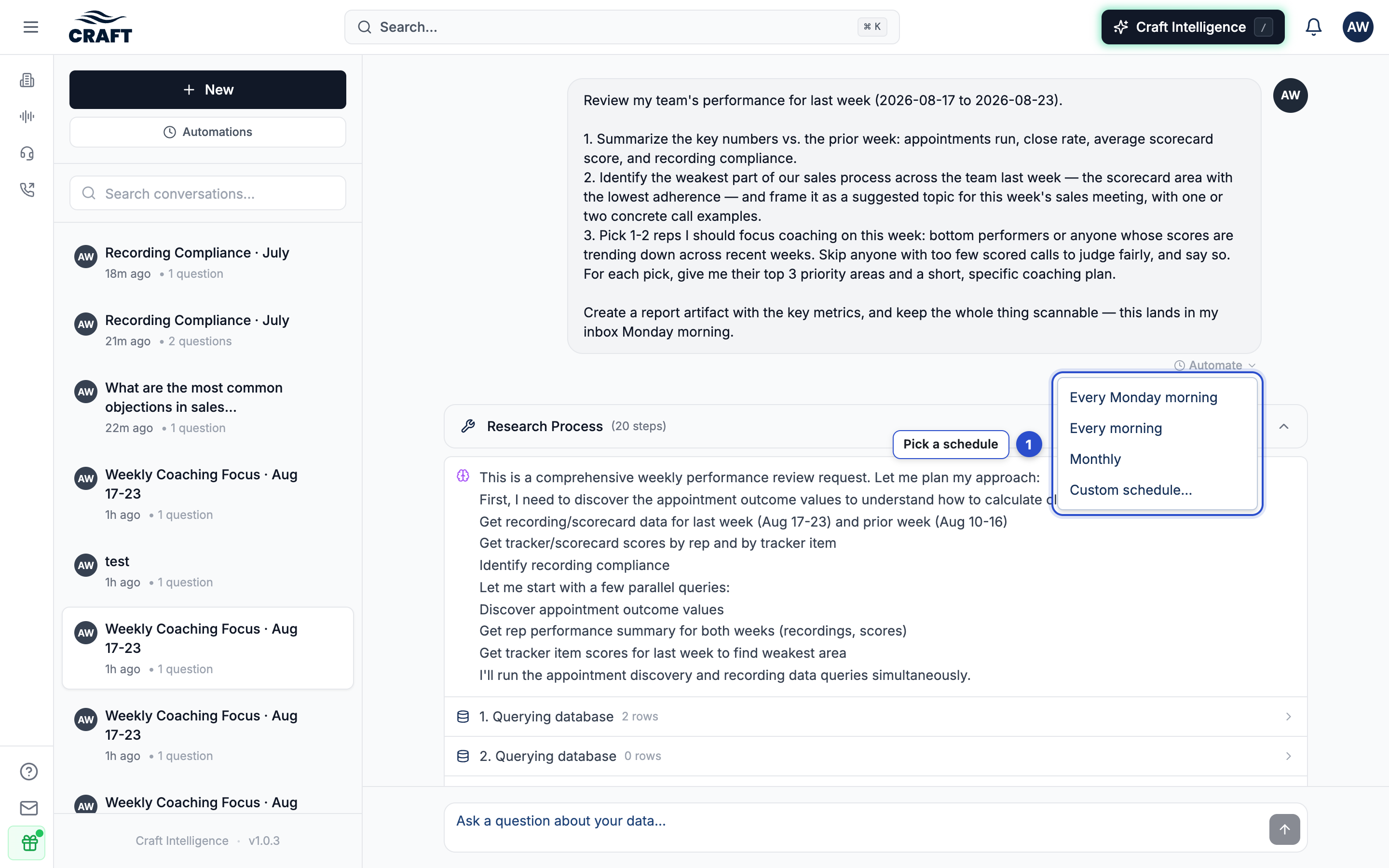
Already asked Craft something worth repeating? Every question in a conversation has a small Automate menu under it. Pick a schedule — that’s it. The question, a name, and the schedule are filled in for you; all that’s left to confirm is who gets it.
Pausing and changing
- Pause your copy anytime — from the automation’s page or from Settings → Notifications. Pausing only affects your emails; everyone else keeps theirs.
- Admins can edit or turn off an automation for everyone from the same page, and see each recipient’s delivery status.
- Emails send in your company’s timezone. New teammates who match the audience (for example, anyone with a coach role) start receiving it automatically — no setup needed when someone joins.