

Craft Capture is the small app on your computer that records your calls.
You normally don’t have to do anything. It downloads updates by itself and installs them when you’re not on a call. It will never restart in the middle of a call.
If your manager asks you to update right now, here’s how. It takes about 10 seconds — watch it once, then follow the three steps below.
Find the Craft Capture circle
Look at the bottom-right corner of your screen, next to the clock. If you don’t see a small colored circle, click the little ^ arrow to show hidden icons. The circle is Craft Capture — green when you’re free, red when you’re on a call.
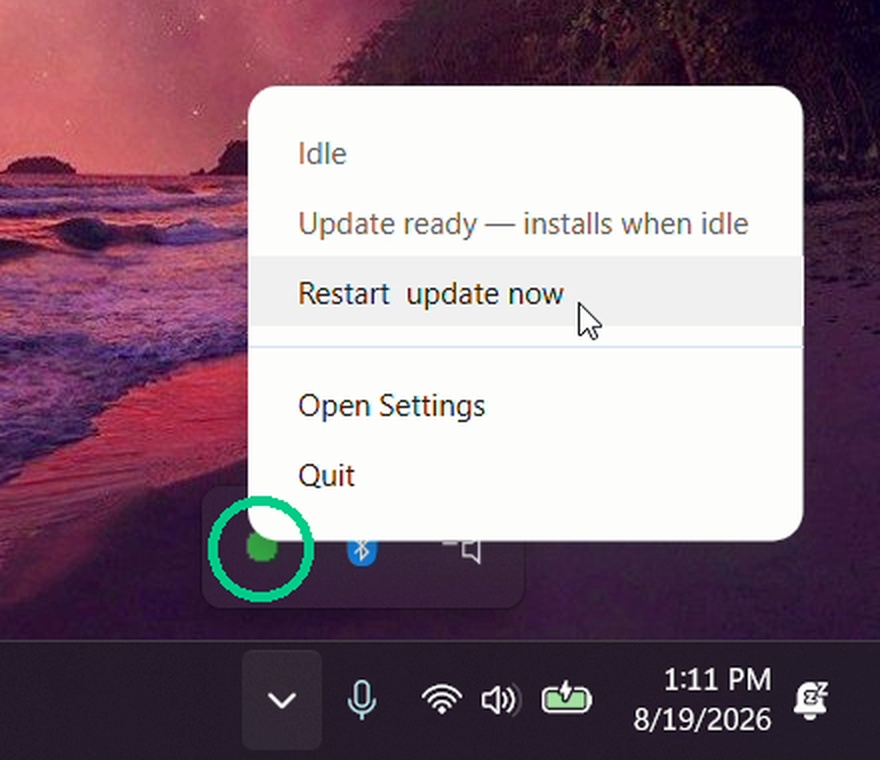
Right-click the circle and click “Restart, update now”
Wait until you’re between calls, then click it once.
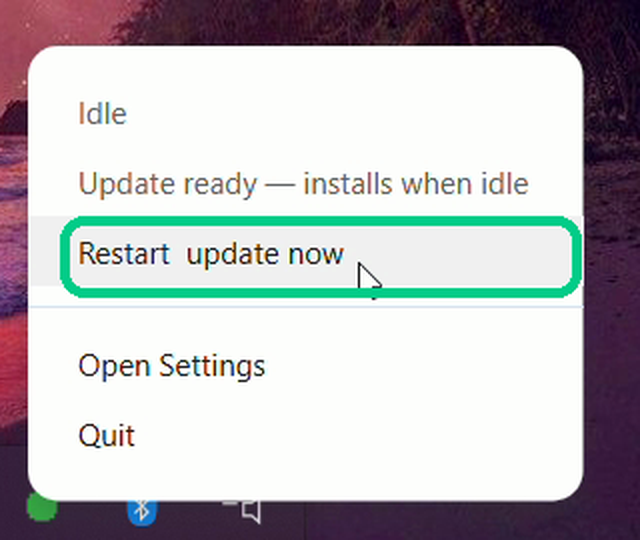
Don’t see “Restart, update now” in the menu? You’re already up to date — there’s nothing to do.
Wait about 10 seconds
The app closes and comes back on its own. That’s it — you’re done, and your next call records normally.
Want to check it worked?
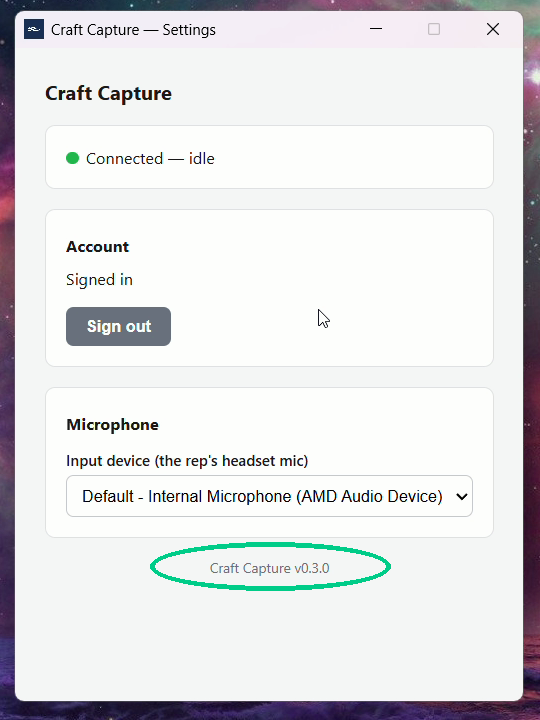
Right-click the circle again and click Open Settings. The version number is at the bottom of the window.
Updates never interrupt a call. If you skip these steps, Craft Capture will still update itself the next time your computer is on and you’re away from calls for a while.